




Bambu Lab 3D Printer Training Session

Tutorial designed by: Mo & Innovation Wing tutor

Usage arrangement

FOR ALL
MEMBERS

Access
permission

CHECK-IN-OUT
WITH STAFF

Requirement
before usage

WITH

TUTORS

Buddy system
requirement
  1. [For All Members] All members of Innovation Wing are welcome to use the Bambu Lab 3D printer to support their hands-on works.
  2. [Talk to us] Before using our 3D printers, please let us know your print job and project works by filling the 3D Printing Job Registration Form. If you do not have a project supervisor, please contact our staff (Director of Innovation Wing/ technical staff/ tutor staff), we are very happy to help you.
  3. [Operate the 3D printer with tutors/technicians] Please operate the 3D printer with our tutors/technicians, we are very happy to help.
Usage procedure for members
3D printing registration form
  • Members please come to Innovation Wing and talk to our on-duty tutors/technicians.
  • Innovation Wing tutor/technician will go through the printing file with members and do a final confirmation of the printing parameters (such as duration, layer thickness, dimension, …etc) 
  • Once confirmed, members can fill the 3D printing registration form

  • Innovation Wing tutor/technician will mark the assigned timeslot for the 3D printer on calendar.
User manual of Bambu Lab Printers

Please click the following button to access the official user manual for the Bambu Lab printers.

Safety rules

Please click the following button to access the safety guideline.

FDM 3D Printing Training Instruction

Please click the following button to access the training instruction for the Bambu Lab printers.

This operational guideline is a walkthrough of the general printing procedure in Innovation Wing. You will act as a member and go through this process once.

  • Step 1. Create an object model (.STL file)
  • Step 2. Printing pre-configuration (.G-code file)
  • Step 3. Talk to on-duty tutor/technician staff.
  • Step 4. Fill in the job registration form by members, mark on the usage calendar by staff
  • Step 5. Start printing and collection of printed items.

Step 1. Create an object model (.STL file)

  • Members can do this part on the PCs in the 3D Printing Station/in the Digital Learning Studio.
  • This is not a tutorial of Solidworks.
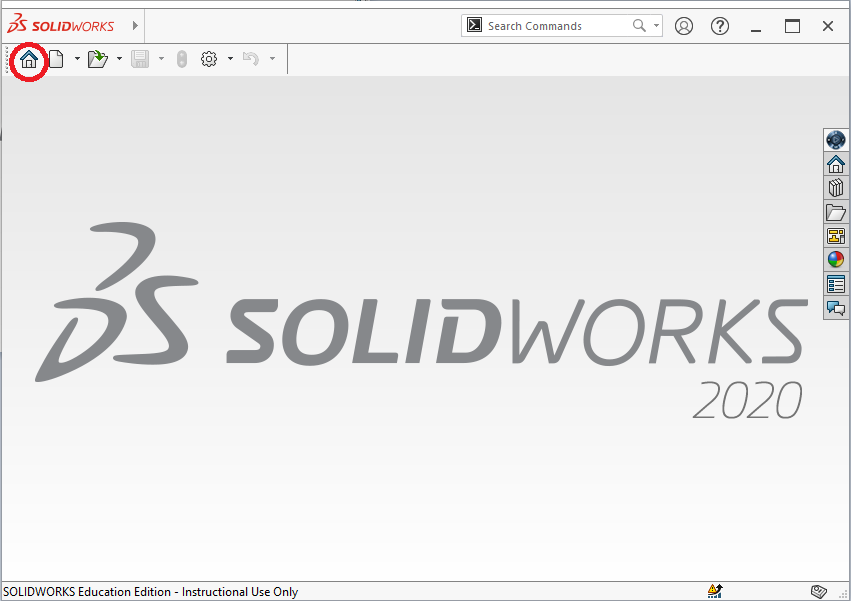
  • 1.1. Open Solidworks from any computer in 3D Printing Station.
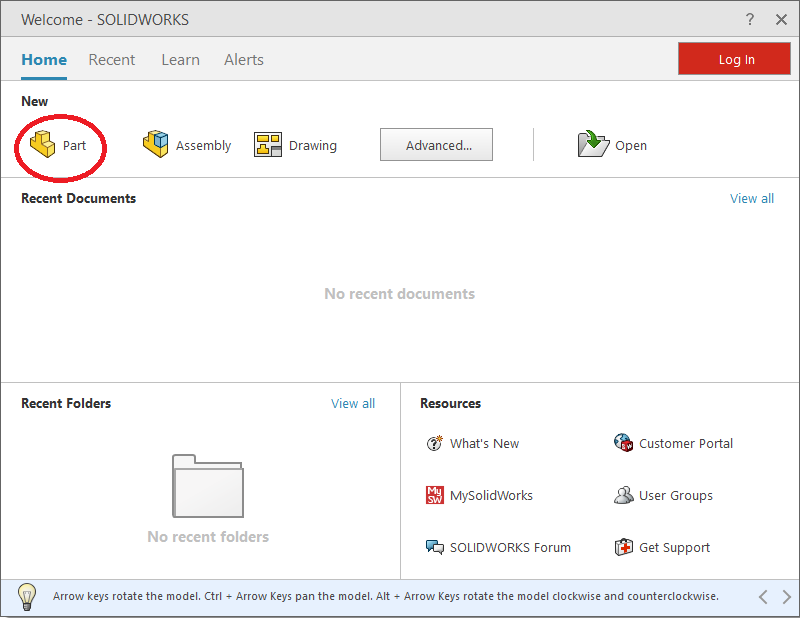
  • 1.2 In the Welcome panel, choose Part, as we are only using the Solidworks to draw a 3D part (there are many other features like assembly and simulation that you have to learn in other Solidwork workshops if you are interested in)
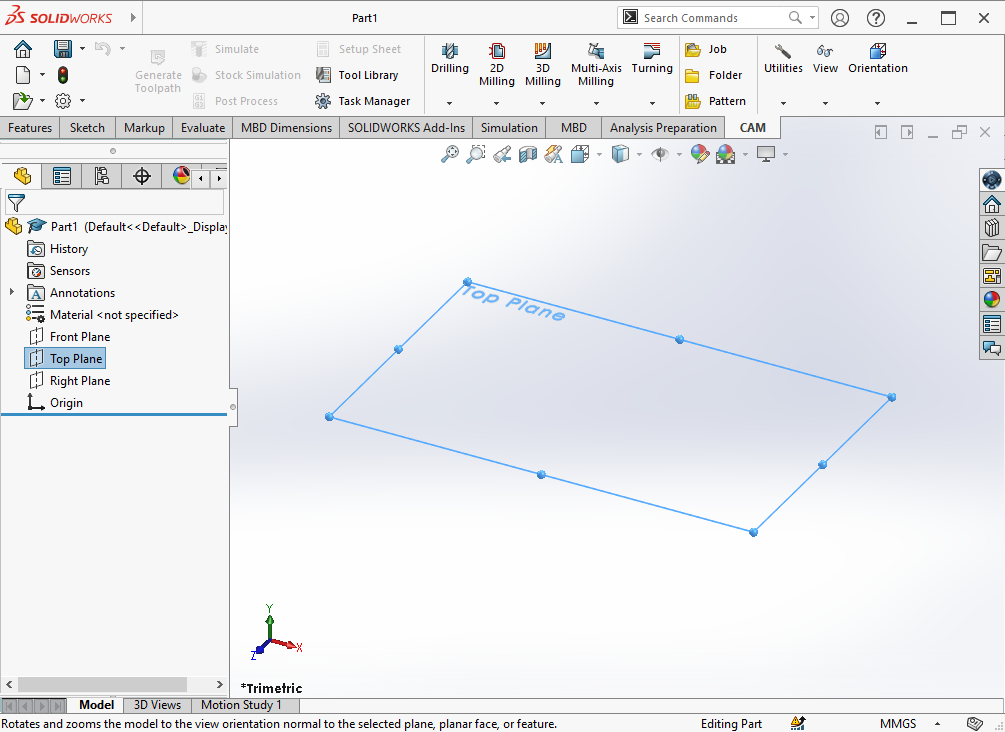
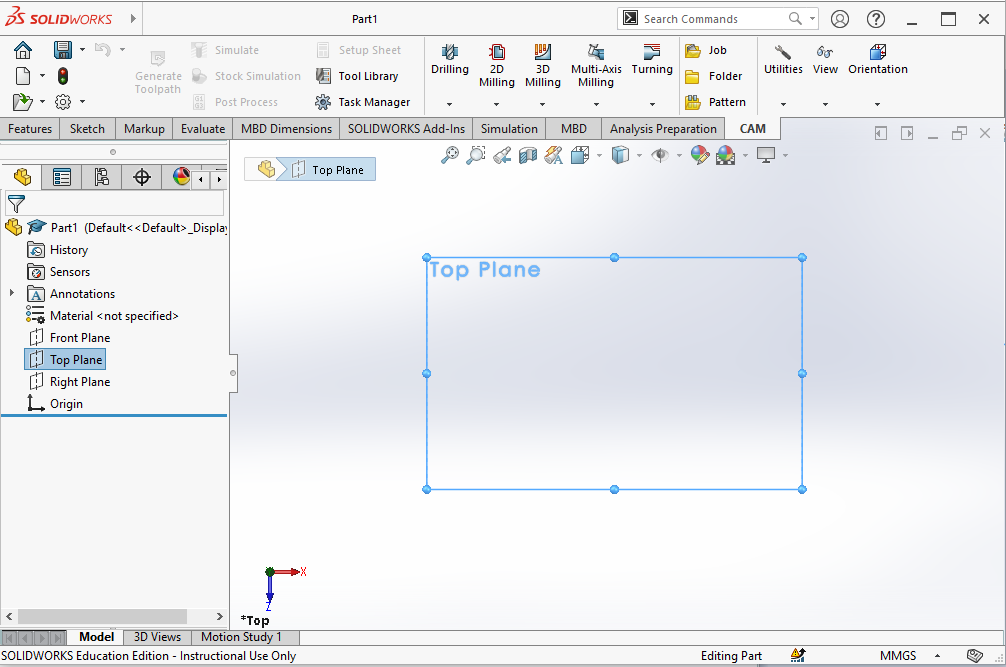
  • 1.3. Once the workspace is loaded, click the “Top Plane” on the left panel to view the top panel of the workspace (As in the 3-dimension, there are actually 6 faces).
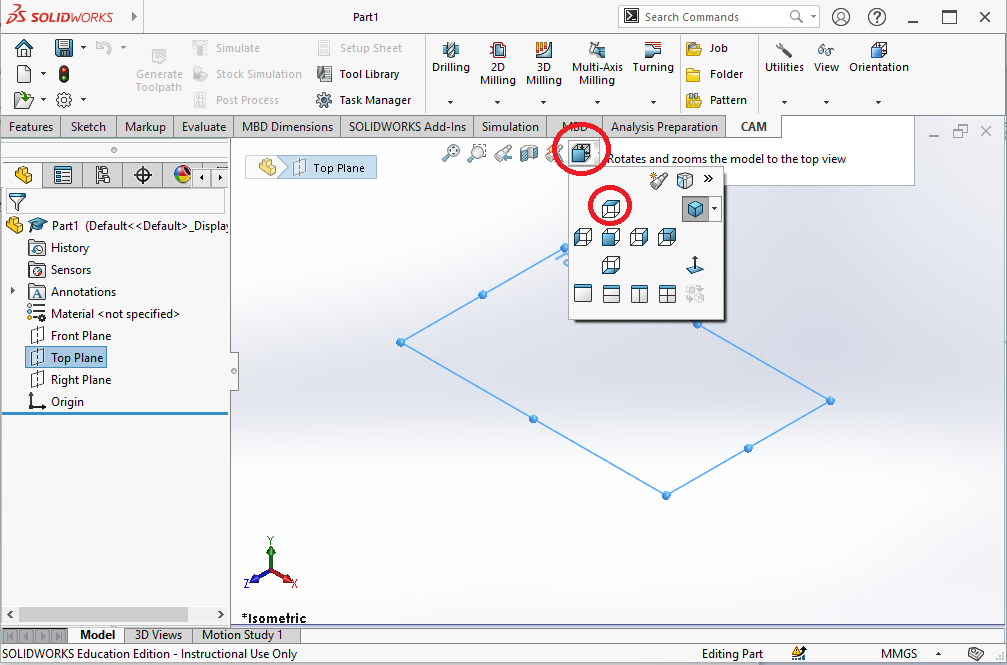
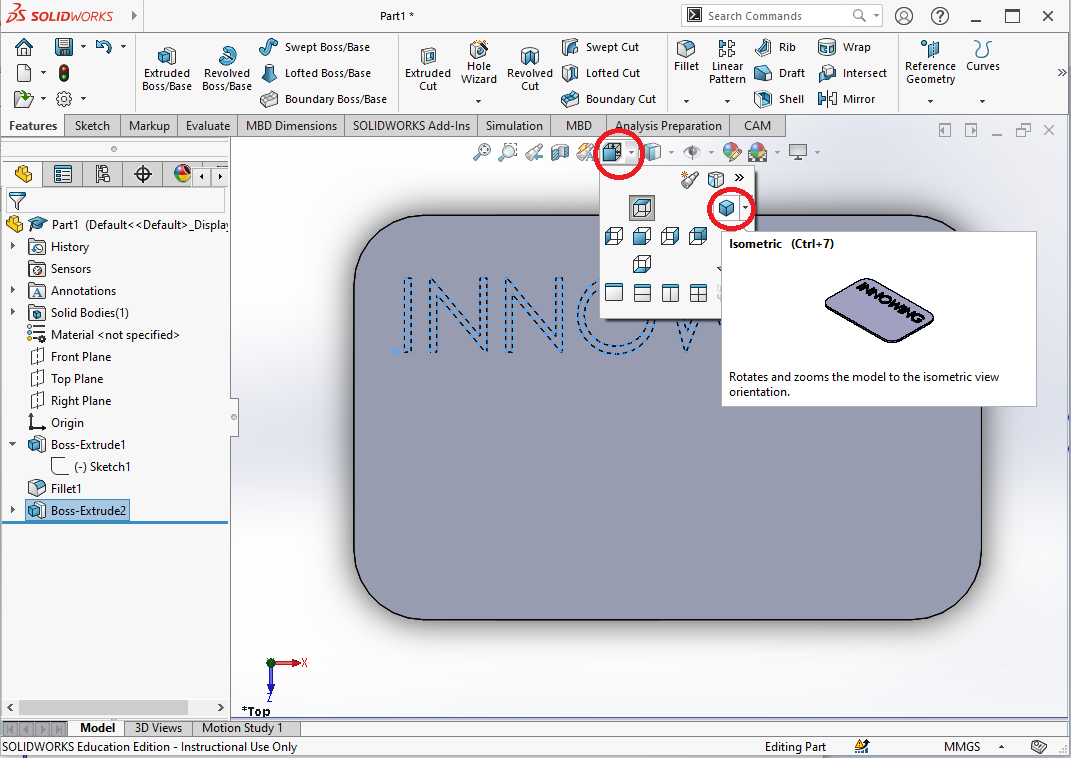
  • 1.4. It is easier for us to draw the shape if we have a top view. Click on the “View Orientation” button as illustrated in the figure.
  • Choose the “Top” view orientation
  • 1.5. This is what looks like if you see the workspace from top orientation.
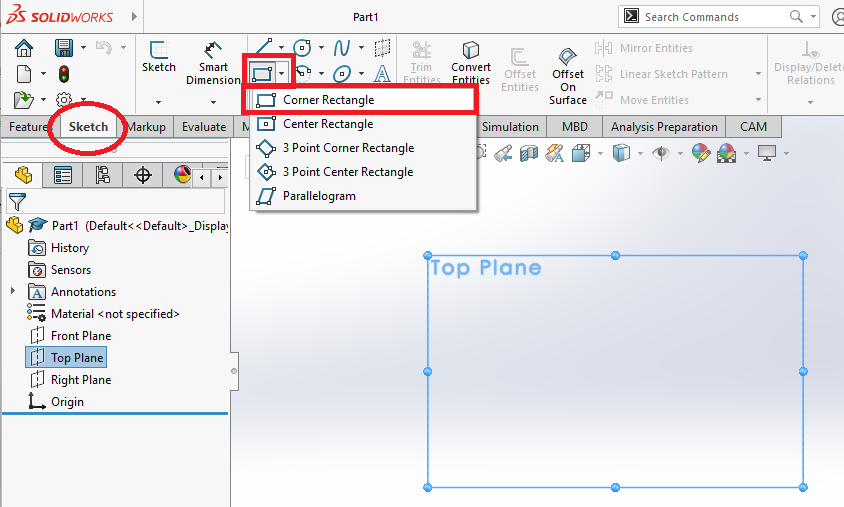
  • 1.6. Sketch is the first step to draw a shape because we want to make a rectangle as the base.
  • Please click the Sketch tab, then choose the Corner Rectangle button.
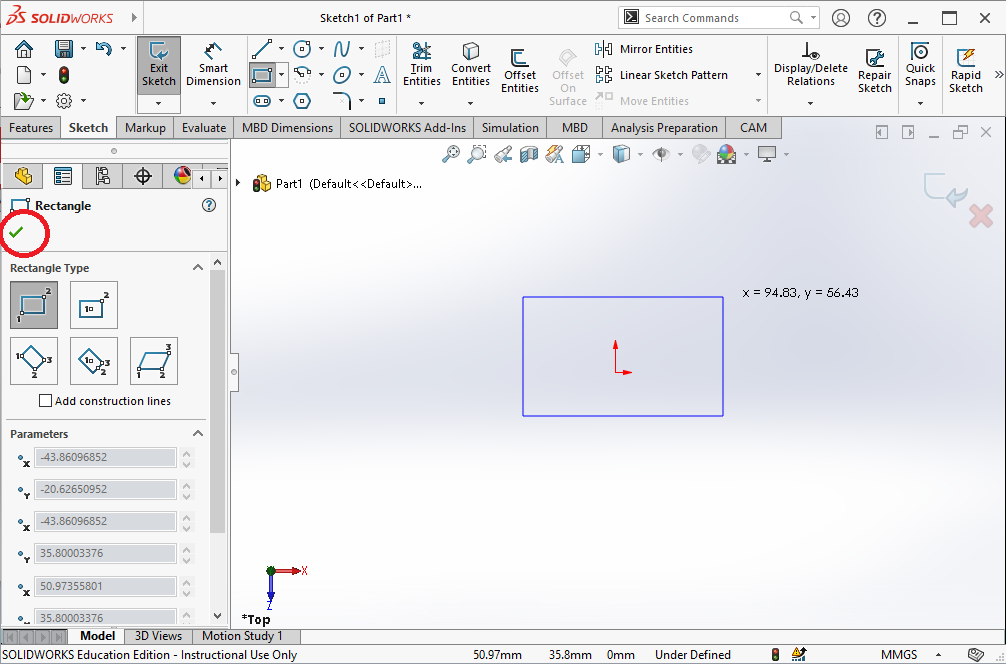
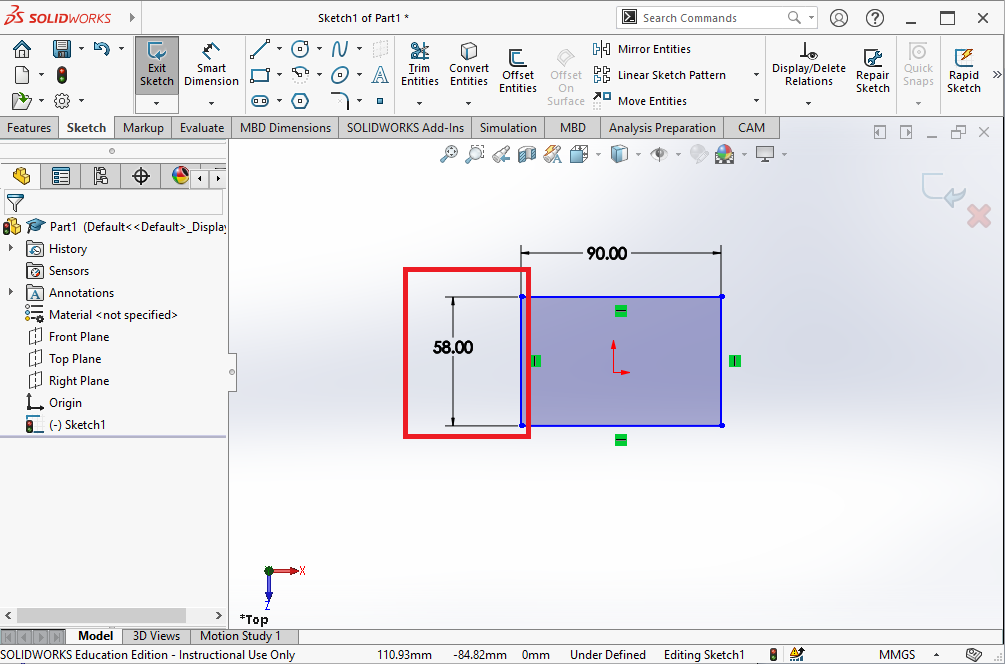
  • 1.7. Use the mouse to click and drag a rectangle, dimension around 90mm width and 58mm height. You do not need to be precise at this step.
  • After drawing the rectangle, we have to click the green tick to confirm the shape. 
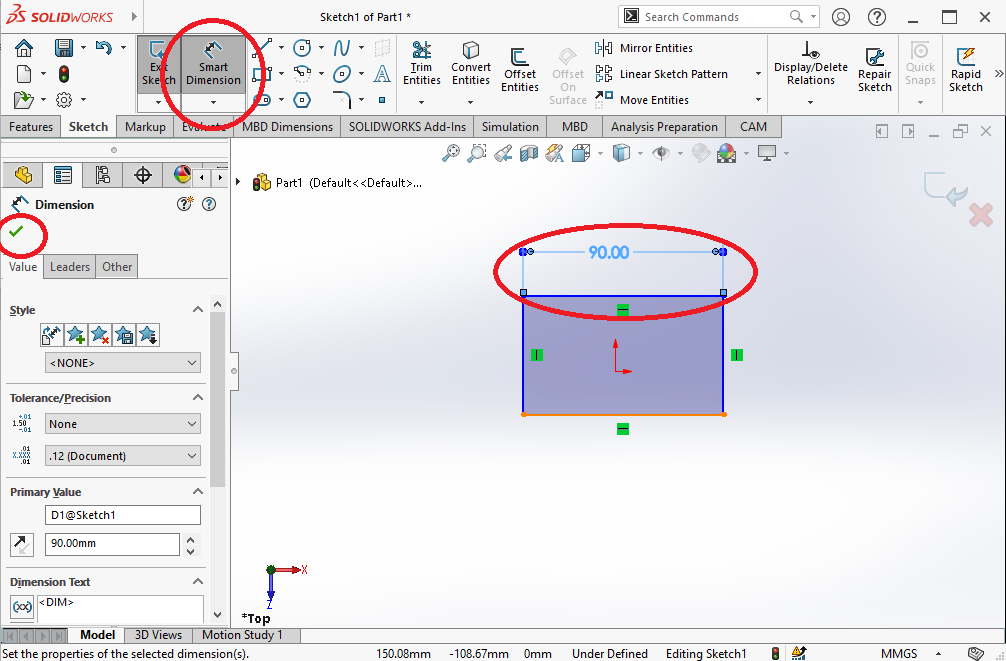
  • 1.8. Now we would like to use the Smart Dimension tool to fix the dimension of the rectangle.
  • Click the “Smart Dimension” button on top.
  • Click the top edge of the rectangle and the measurement is listed.
  • Then you can key in the length as 90mm.
  • Remember to click the green tick to commit the change.
  • 1.9. Now you can repeat Step 1.8 on the other dimension of the rectangle to set it as 58mm.
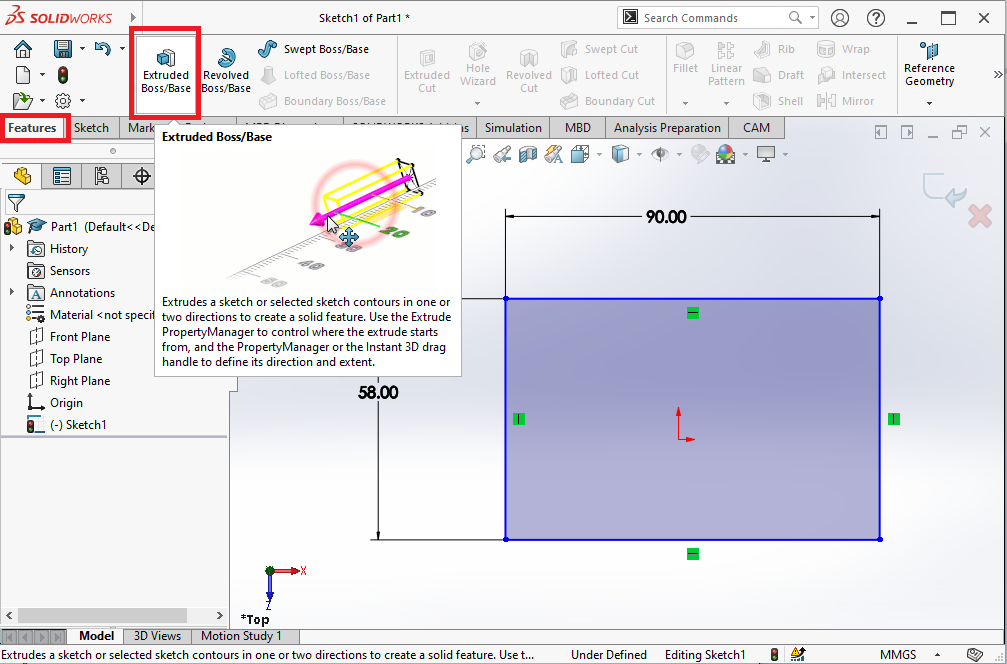
  • 1.10. Now we would like to use add the extruded feature for the rectangle (from 2D to 3D)
  • Click the “Features” tab.
  • Click the Extruded Boss/Base button
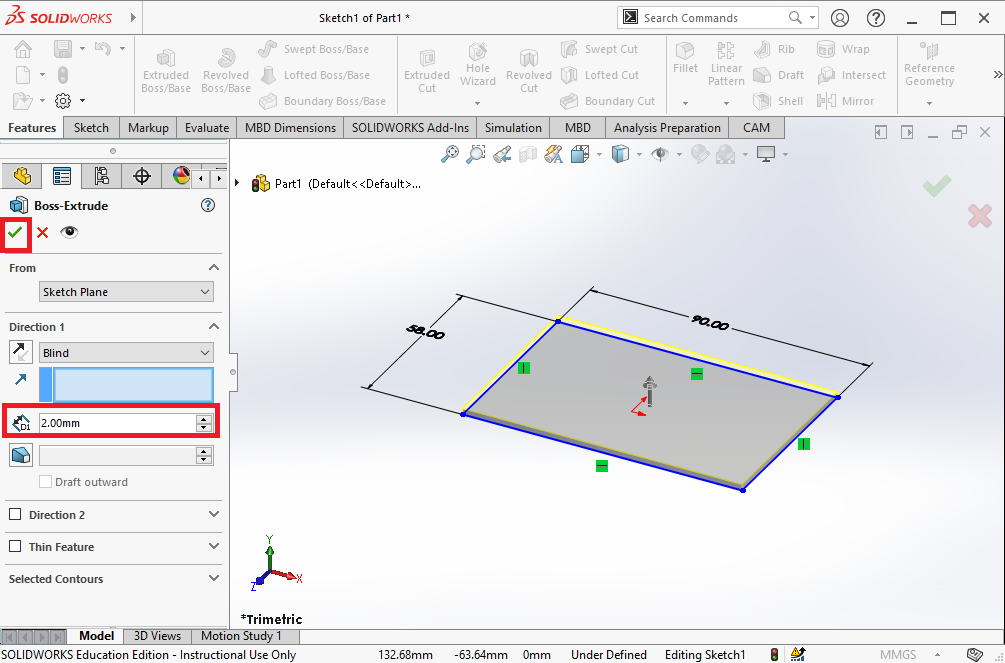
  • 1.11. We can key in the thickness (or Depth) of the layer as marked in the red textbox. 
  • Let’s set it as 2mm 
  • Commit the update by clicking the green tick.
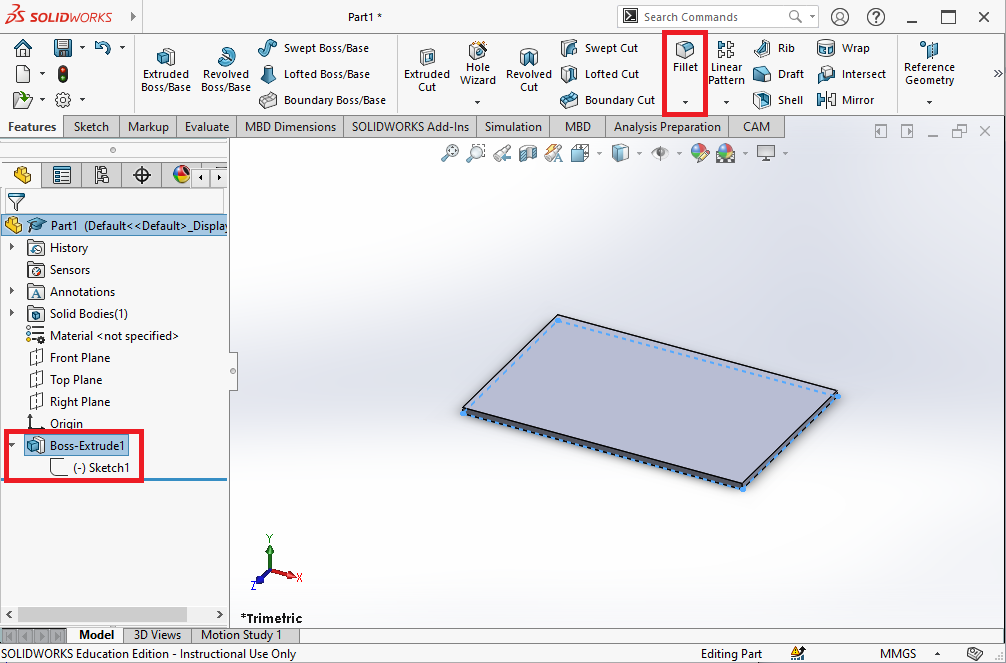
  • 1.12. You can see the object is now a thin 3D rectangle.
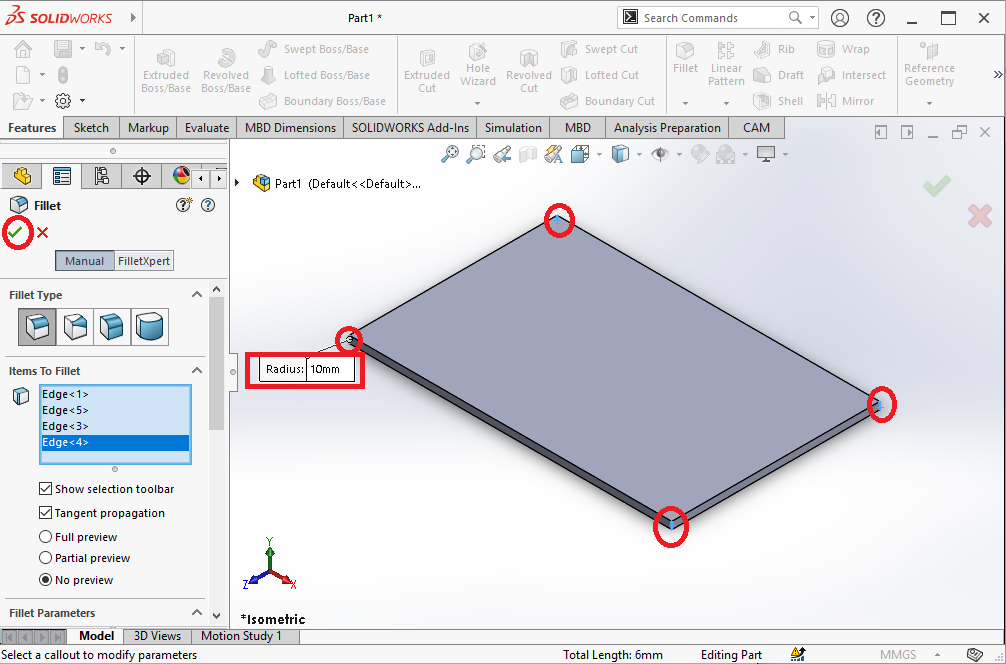
  • To make the corner of this 3D rectangle round shape, please click on the “Fillet” button on top.
  • 1.13. After clicking the fillet button, you can specify the items to Fillet.
  • The items to Fillet are the 4 edges of the rectangle. 
  • Use mouse to carefully highlight the 4 edges. Note that we should select the short lines as marked by red circles in the figure.
  • Once the 4 edges are selected, click the green tick to apply the fillet feature.
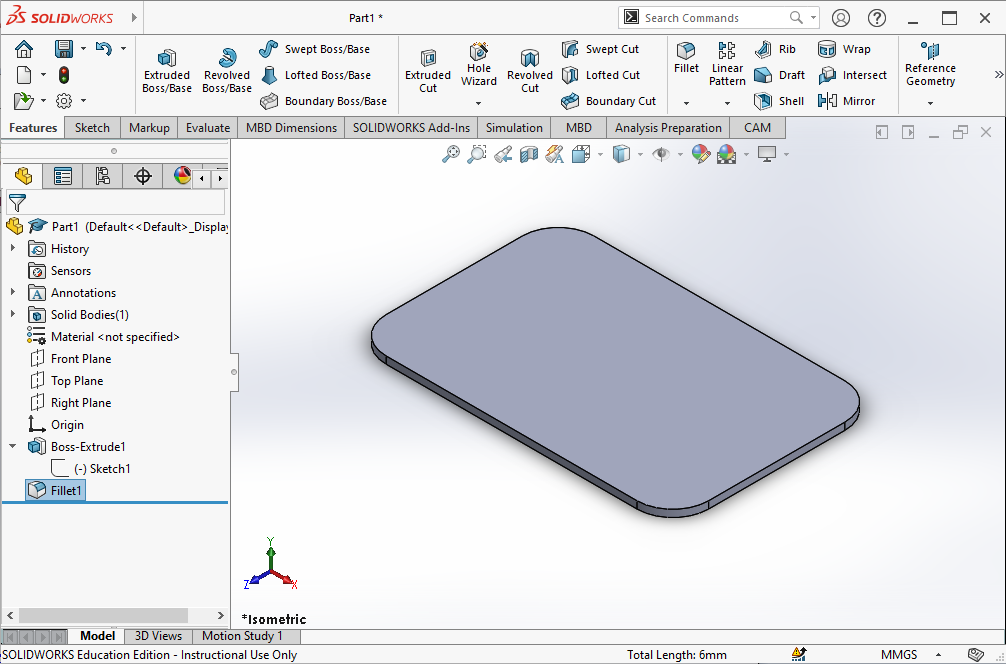
  • 1.14. This is the finished object after successfully apply the fillet feature on the 4 edges.
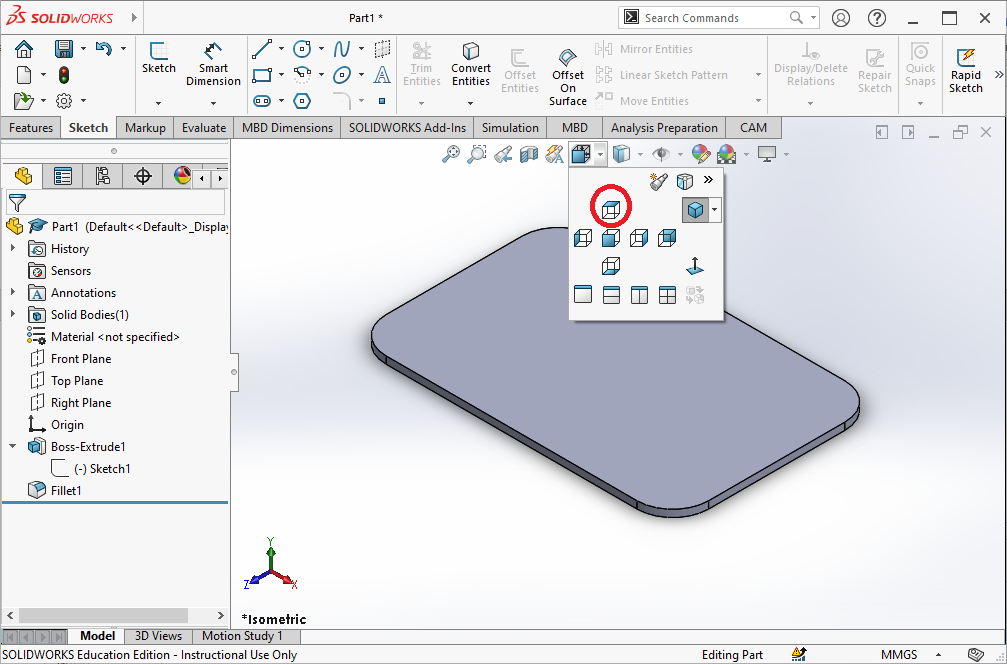
  • 1.15. Now we would like to add text on top of the rectangle. Let’s change the view orientation back to top.
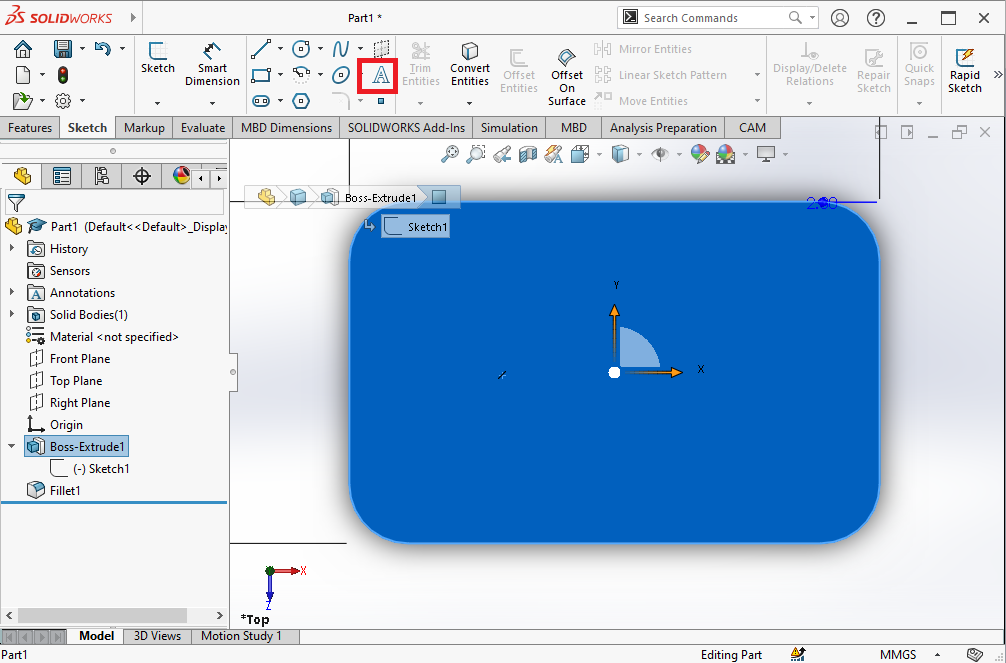
  • 1.16. This figure shows the top view of the current object.
  • Click on the surface to mark the face we are applying the text on.
  • Then click on the “A” text button on the top to start key in the text to attach to the surface.
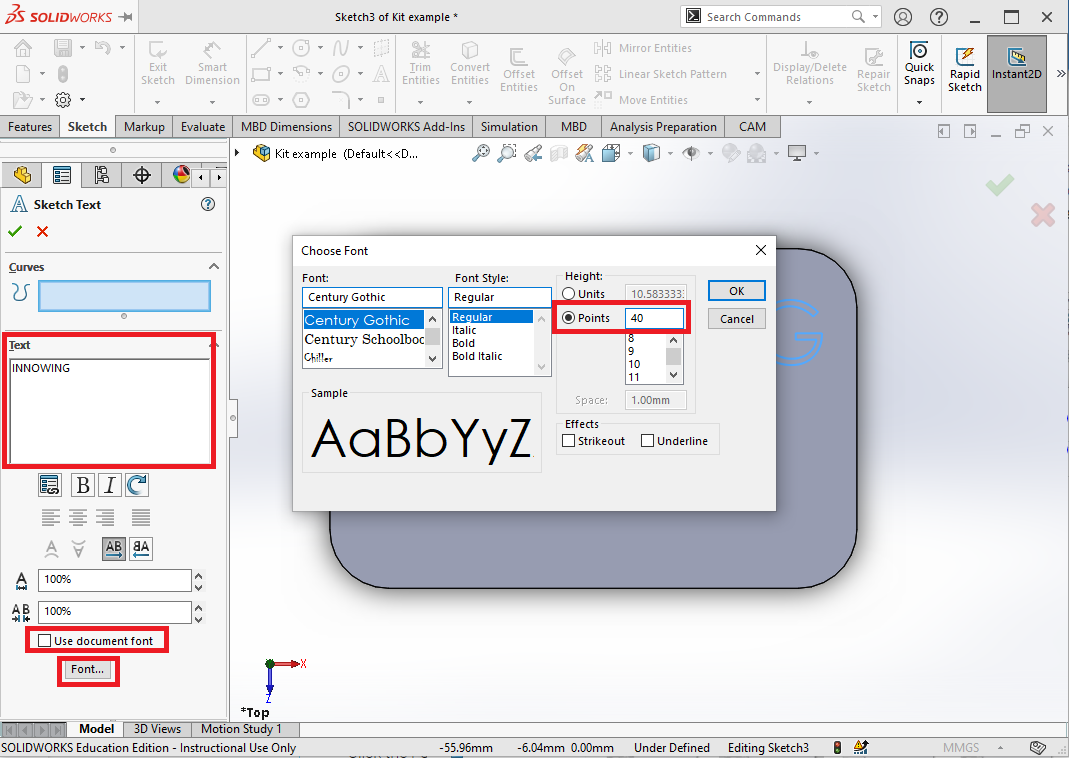
  • 1.17. Now key in the text “INNOWING
  • Uncheck “Use document font” so you can choose your own font.
  • Click the Font button to choose the font and size you want.
  • Let’s use the Front height of 40
  • Click ok to confirm the font, and click the green tick to apply the Text.
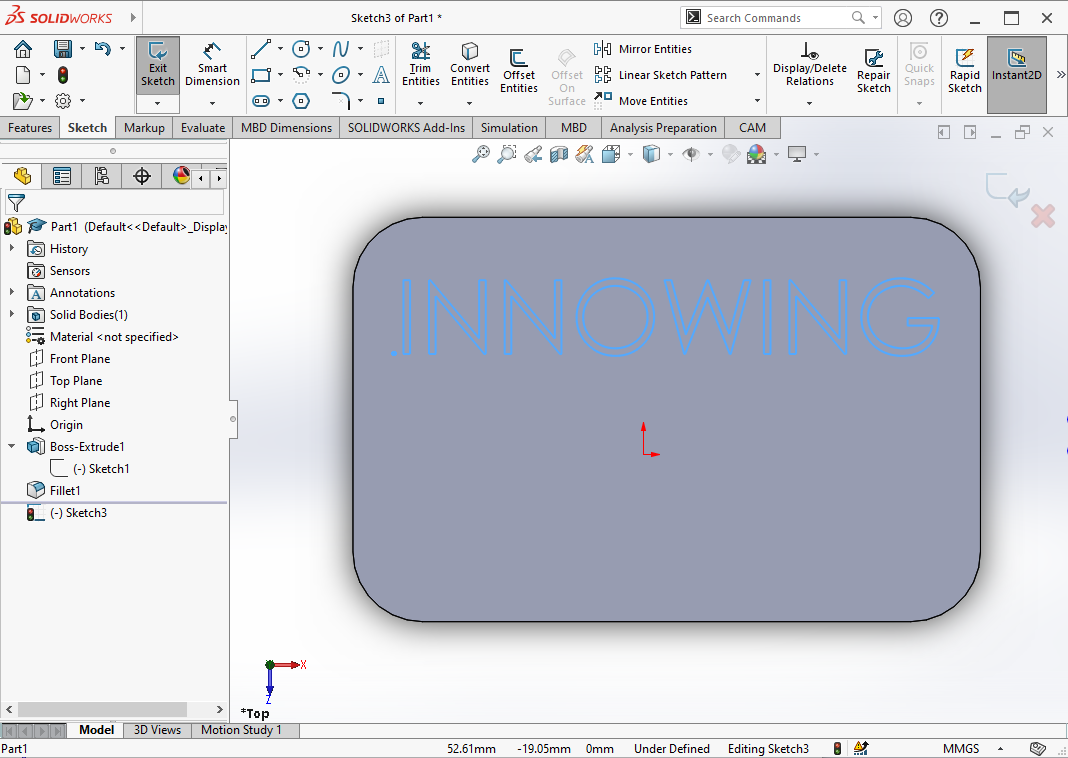
  • 1.18. Use the mouse to move the Text to the middle top area of the rectangle.
  • 1.19. Now we have the “INNOWING” text on the rectangle.
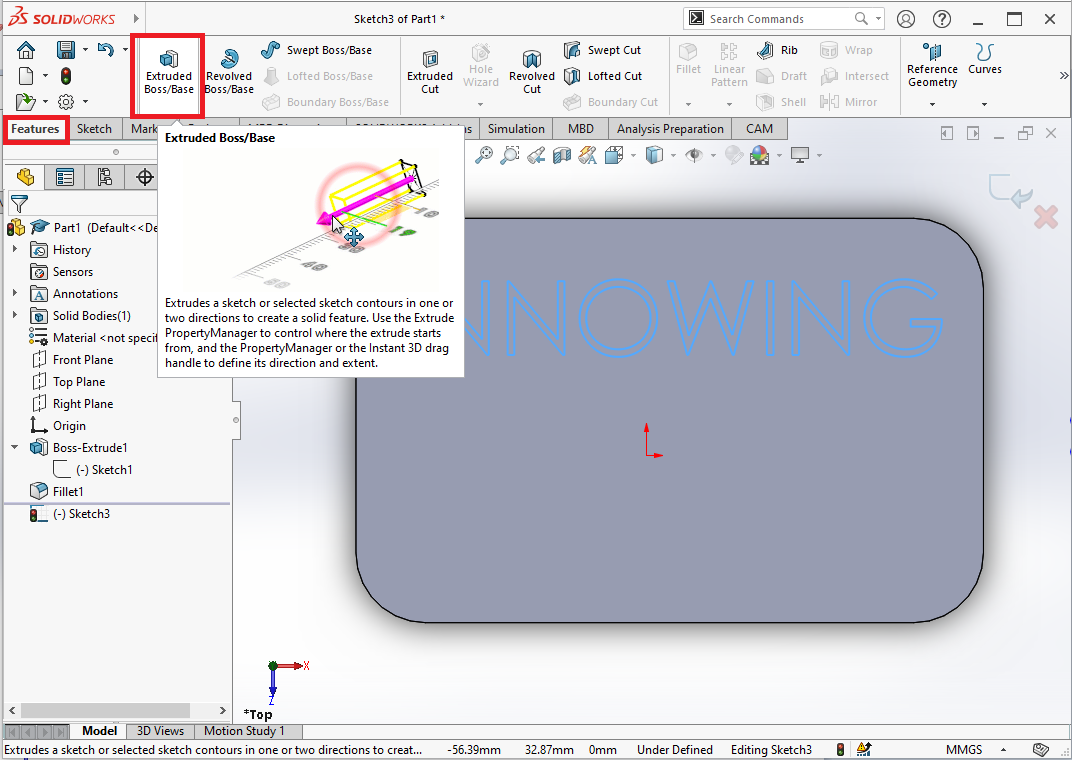
  • We are going to make the “INNOWING” 3D and level up.
  • To do this, again we click on the “Features” tab.
  • Click the Extruded Boss/Base button
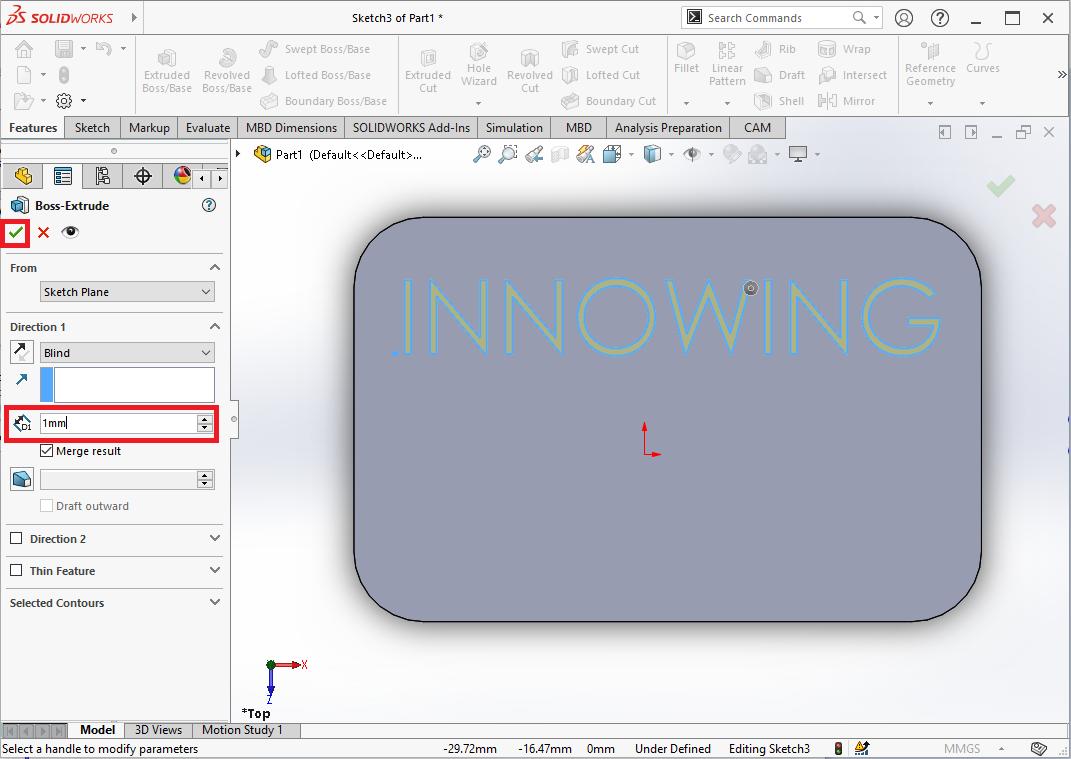
  • 1.20. We can key in the thickness (or Depth) of the layer as marked in the red textbox. 
  • Let’s set it as 1mm 
  • Commit the update by clicking the green tick.
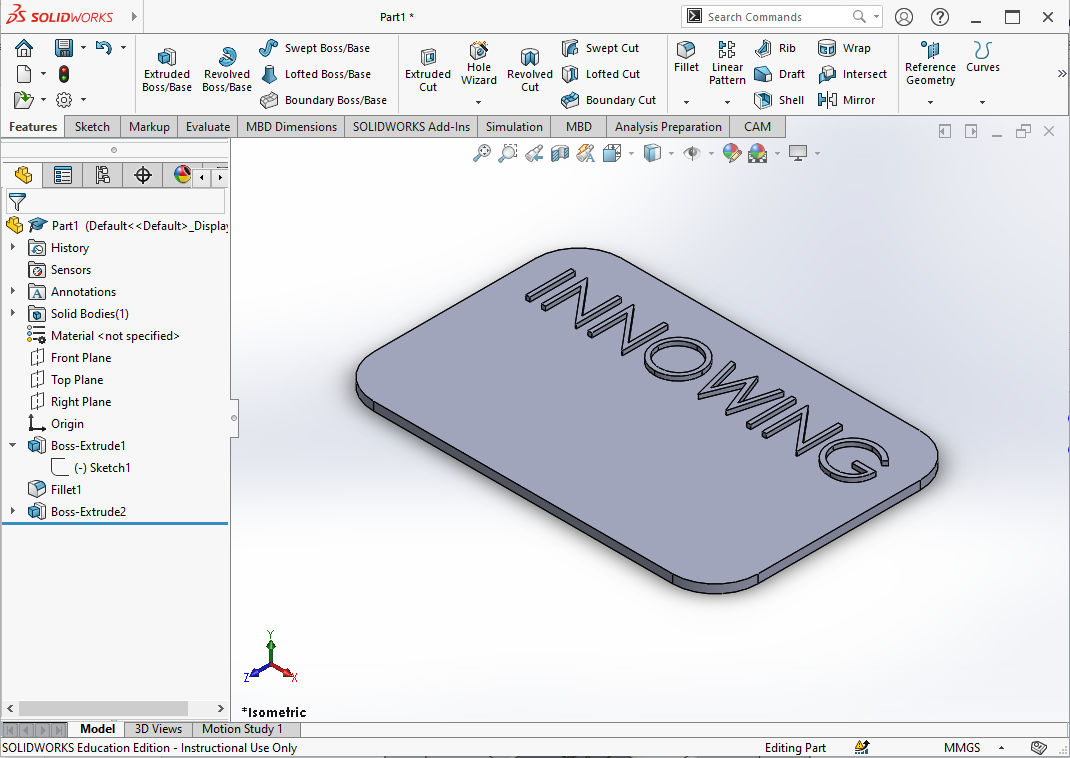
  • 1.21. Let’s view the 3D object by changing the view orientation to Isometric.
  • 1.22. The isometric view of the 3D model.
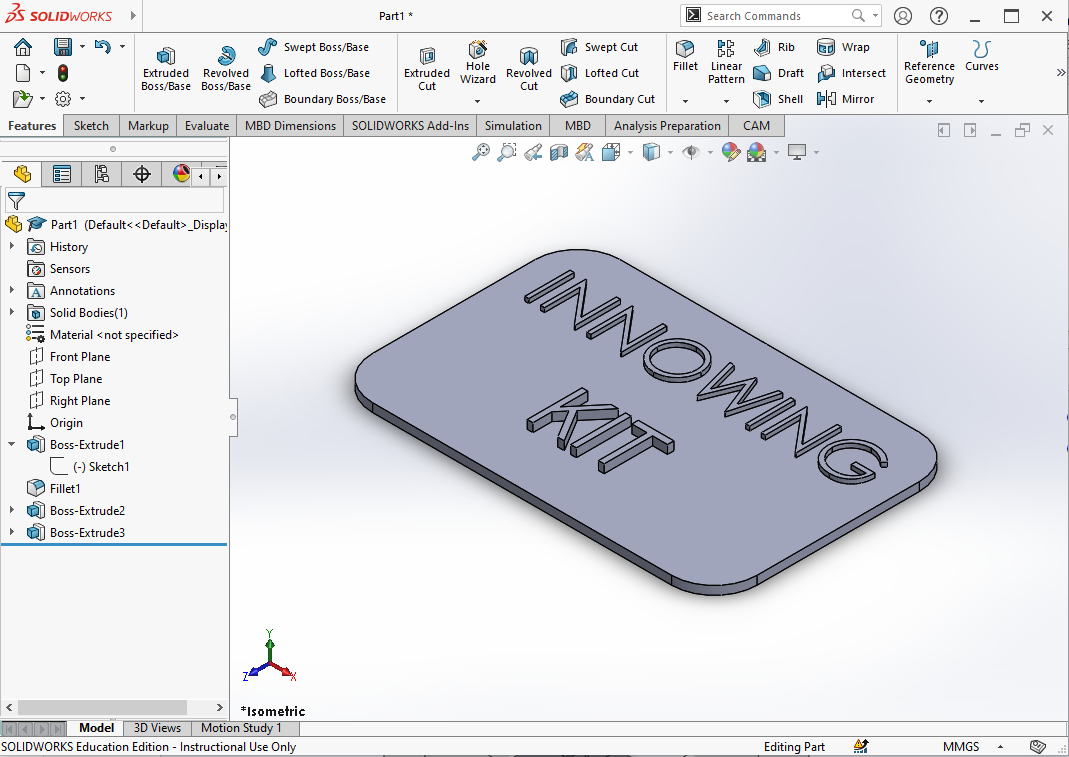
  • 1.23. Now it is your turn to add your nickname to the middle bottom part of the rectangle. Please repeat step 1.15 to do this.
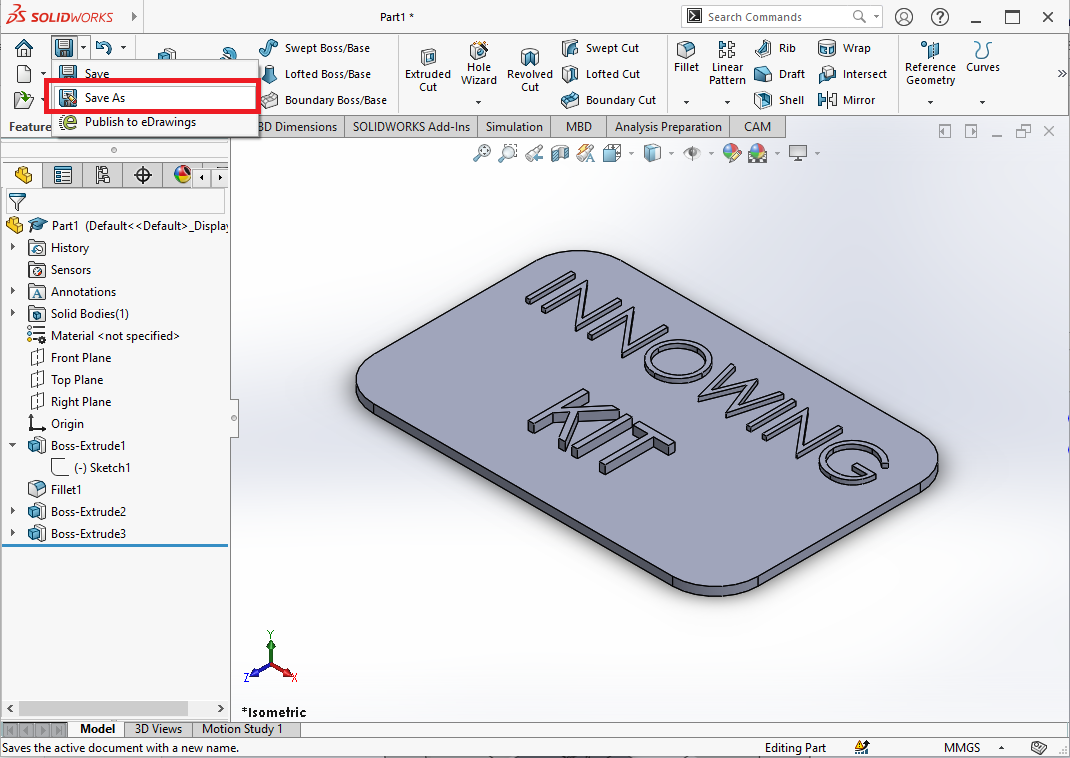
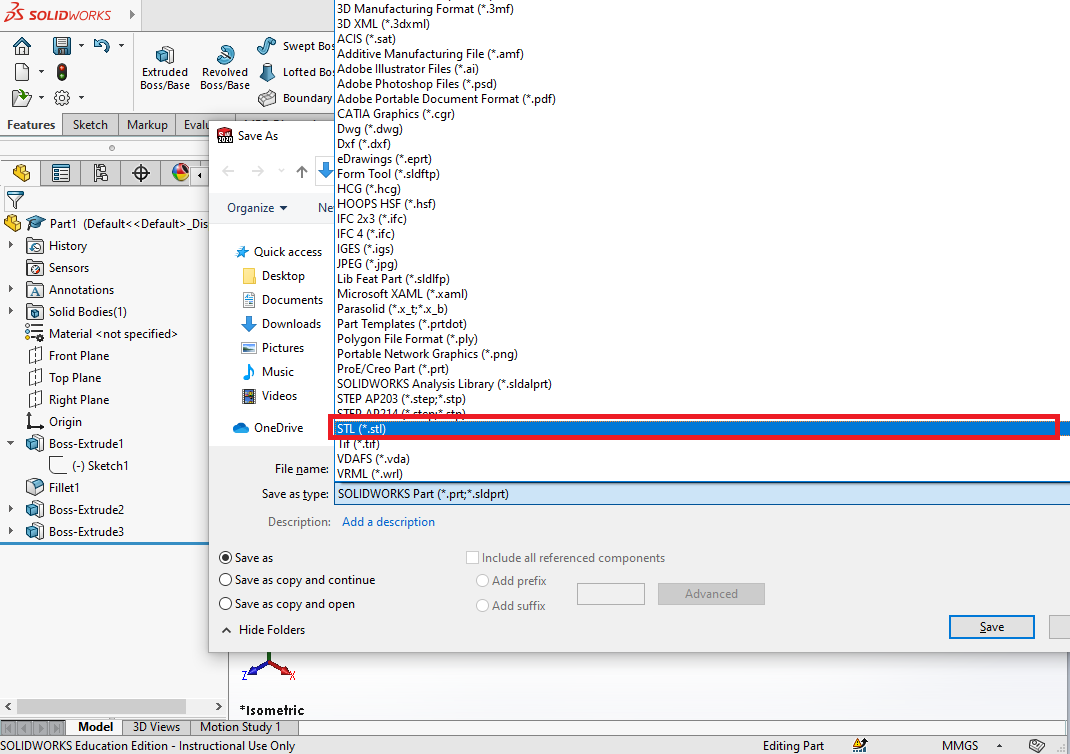
  • 1.24. Once the object is done. Let’s click “Save as”.
  • 1.25. Choose STL type as the next step requires .STL file for 3D printing.
  • Note that you have to save the entire project into “SOLIDWORKS Part” type so you can do the editing with solidwork in the future.

Step 2. Printing pre-configuration (.G-code file)

  • Members can do this part on the PCs in the 3D Printing Station/in the Digital Learning Studio.
  • 2.1. Open the BambuLab software application. The BambuLab software is installed in all computers in the digital learning studio and the computers next to the 3D printers. The version we used in this tutorial is 02.01.01.52. If you use another version, please use the following screencap figures as a reference.
  • 2.2. Load the .STL file of the 3D object. 
  • 2.3. The object will be loaded and show on the plate. Click on the object to edit the orientation, scaling, and other parameters.
  • 2.4.1. Rotation. Click “Auto Orient”, then the object will be oriented with a smaller overhang area and a larger bottom area.
  • 2.4.2. Rotation. Click on the “Rotation” button as illustrated in the following figure, you will see the rotation can be on X,Y,Z dimension.
  • 2.4.3. Rotation. Try to click on the “red” dimension and drag downward to make the words on the object facing upward.
  • 2.4.4. Rotation. You can also enter angles to achieve more accurate adjustments.
  • 2.4.5. Rotation. This figure shows the object after rotation. We prefer a smaller overhang area because overhangs need support and supports can damage the interface surface more or less. We prefer a larger bottom area because the object sticks to the heat bed better.
  • 2.5. Scaling. Change the printing dimension of the object.
    The dimensions are now the same as those designed in step one. Let’s try to click on the scale button and change the X-dimension from 90mm to 50 mm. You will see the object becomes much smaller.
  • 2.6.1. Color paint. Click “+” to add the filament, choose “PLA Basic” and pick “Black” for painting.
  • 2.6.2. Color paint. Pick “Black” for painting by simply clicking the color box. The Fill Tool colorizes a bucket of connected facets propagated from the facet pointed by the mouse pointer. You can paint all the interfaces by click them.
  • 2.6.3. Color paint. Here is another method. Pick “Black” for painting by simply clicking the color box. The height range tool supports mouse-follow settings. You can select the height range to paint by clicking on the model. For this object, we can click the surface of characters and color it.
  • 2.6.4. Color paint. For this object, we can set “Height range” to 0.55mm, and set the base layer height (bottom) to 1.14mm as the starting point for coloring. The height is not same as we designed in step one before, because we have changed the scale.
  • 2.7.1. Support. Tick “Enable support“. Support structures play an essential role in 3D printing, especially when models have significant overhangs. Click “Slice plate“. Change “Color scheme” and choose “Line type”. We can see for this object, no supporting structure generated.
  • 2.7.2. Support: Adding the Support Filaments in the Setting. When the object is not placed horizontally on the plate, or when printing objects with special design, there will be an overhanging part of the object, then we need to add “Support” to complete the print. Click “+” to add the filament, and choose “Bambu Support For PLA”.
  • 2.7.3. Support: Setup support for PLA Filament. Check the AMS first, and choose the printer loaded with “support for PLA”.
    Click the Device option and choose the correct printer.
  • 2.7.4. Support: Switch the Filament for Support. Tick “Enable support”. Recommend to change Support/raft interface, only change the interface material between supports and objects. Reduce material waste and printing time.
  • 2.7.5.  Support. Support for PLA application case, indicated in green. After slicing plate, you can see the slicing results in preview screen. There are 2 different types of supports. Recommend tree supports for objects with complex structures.
  • 2.7.6 Support. Recommend normal supports for large planar overhang.
  • 2.8. This figure shows the model we have finished.
  • 2.9. Once the setting is ready, click slice plate to generate a 3mf file prepared for printing. For this example, this placement is sufficient and no support is needed.
  • 2.10. There will be time estimation and material estimation and save to file you need to submit when you apply for printing in Innovation Wing in the next step.

Step 3. Talk to Innovation Wing tutors/technicians

CHECK IN-OUT
WITH STAFF

Requirement before usage

  • 3.1. Members come to Innovation Wing and talk to our tutors/technicians.
  • 3.2. Innovation Wing tutor/technician will go through the print file and double confirm the printing parameters and materials (such as layer height, in-fill, support, etc.).

Step 4. Fill in the job registration form by members

  • 4.1. After confirming the print job, members will fill in the FDM 3D printing registration form under the guidance of tutors.

Step 5. Start printing and collection of printed items

WITH TUTORS

Buddy system requirement
  • Tutors will submit the print job to the Bambu Lab 3D printers and assist with operating the machine.
  • 5.1. Check available devices
    Please check if we should load/unload materials.
    DO NOT USE any other filament unless confirmed and approved by the technical managers/tutors of Innovation Wing.
    • 5.2. Select an available printer with appropriate filaments. Send print job to Bambu Lab X1 Carbon and start printing.
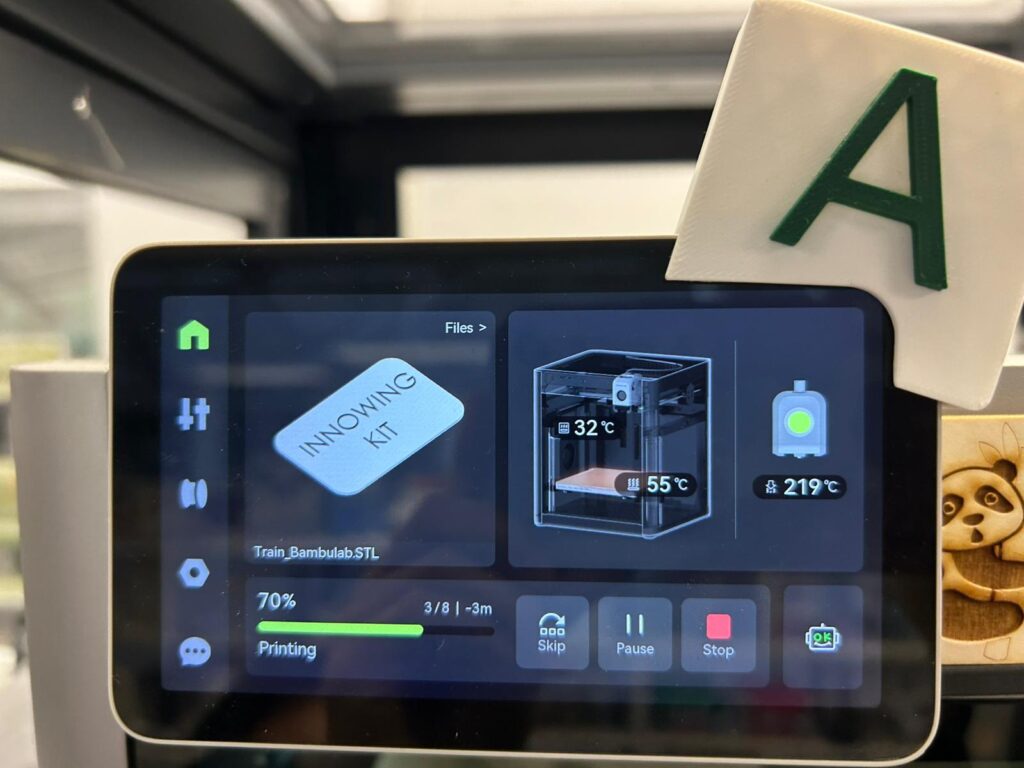
  • 5.3. Check print status at the printer touch screen.
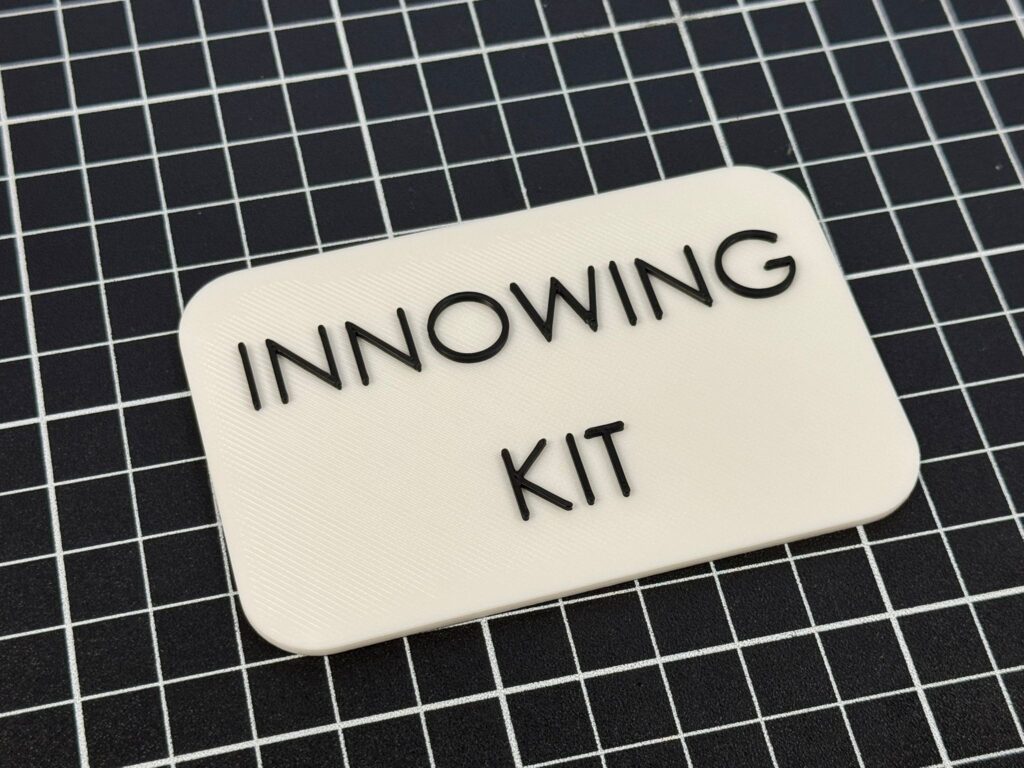
  • 5.4. After collecting the printed object, please show this to the tutors for recording the completion of this tutorial. 

To seek help and assistance

  • Please try to troubleshoot by yourself first by reading the user manual.
  • Seek help from other tutors and technicians if needed.
  • Approach the technical manager if you have questions about machine operation, maintenance, and usage rules.
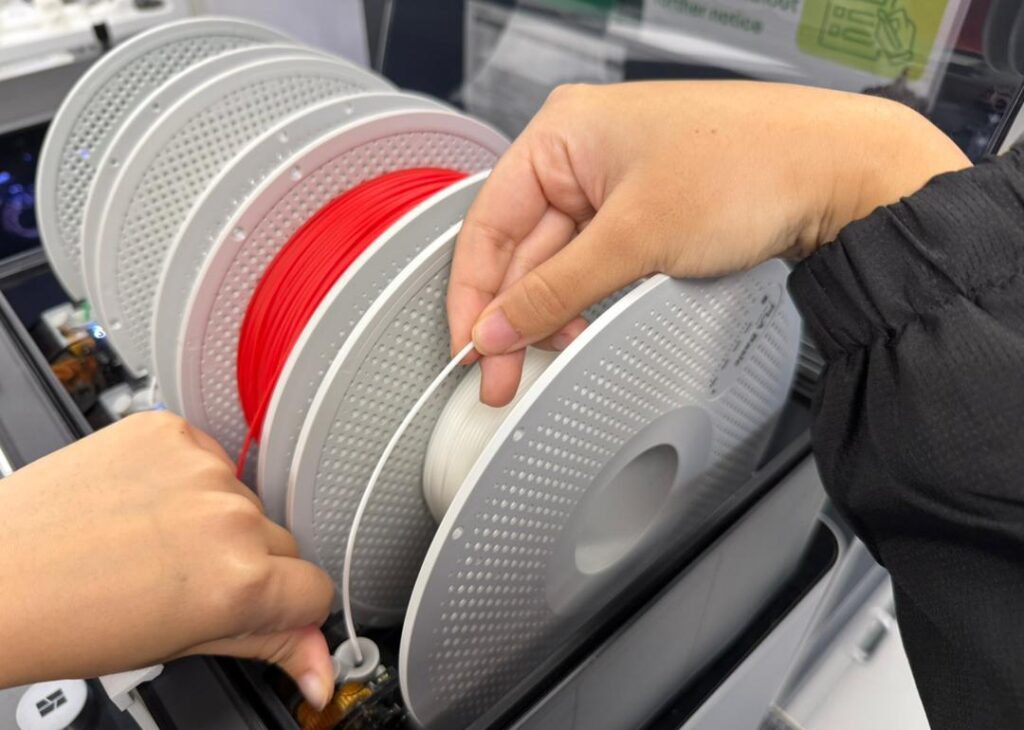
How to Load/Unload filament
Acknowledgment
  • This tutorial is prepared by our tutor Kit Lo from the Innovation Tutorship Training Scheme on Dec 2020.
  • This tutorial is edited by CS Seto (technical manager of Innovation Wing), Edison (technical staff of Innovation Wing) on Jan 2021.
  • This tutorial is edited by Karlos Ma (the teaching assistant of Innovation Wing) and our tutor Emma on Sept 2025.
  • Materials from this tutorial include some recap of the official user manual from Bambu Lab. With some additional materials added by our staff.
Facts
  • Bambu Lab is a leading brand in the 3D printing industry, known for producing high-quality, reliable machines.
  • Bambu Lab 3D printers use Fused Filament Fabrication (FFF) technology, also known as Fused Deposition Modeling (FDM), which involves melting and extruding thermoplastic materials to create 3D objects layer by layer.
  • Bambu Lab 3D printers are highly customizable, with a range of options for nozzle size, print speed, and other settings that allow users to optimize their prints for specific applications.
  • Bambu Lab 3D printers come with a user-friendly software called Bambu Studio, which provides easy-to-use slicing and printing controls for users of all levels.
  • Bambu Lab 3D printers are used in a variety of industries, including automotive, aerospace, education, and healthcare, to create prototypes, functional parts, and other 3D printed objects.
Agenda

Acrylic laser cutting and engraving machine

An acrylic laser cutting and engraving machine is a powerful tool for creating high-precision designs in acrylic materials. These machines use a high-powered laser to cut and engrave designs onto acrylic sheets, resulting in intricate and detailed finished products. Acrylic is a popular material for laser cutting and engraving due to its versatility, durability, and transparency. With a laser cutting and engraving machine, users can create a variety of products, including signage, jewelry, awards, and decorative items. These machines typically offer a range of settings to adjust the laser’s power and speed, allowing for precise control over the cutting and engraving process.

Read More »

SIG – HKU Racing

Formula Student is a renowned educational engineering competition, combining practical engineering with soft skills including business planning and project management. It is a proving ground for students who want to create and change the world. Electrification of transportation system is here, the combination of electric powertrain and traditional mechanical system has made this competition attractive to lots of industries leading to companys’ attention and support. This competition jump starts our students’ knowledge and skills set for their future career. HKU Racing is the first team from Hong Kong to compete in Formula Student (European series).

Read More »

BREED Robotics (Official)

BREED is a student group committed to developing and promoting bio-inspired technology. Our flagship VAYU project – the world’s fastest robotic fish – and our upcoming initiatives such as our robotic dog aim to educate and enhance awareness in the general student body. Using designs perfected by millions of years of natural evolution, we adapt selected features into increasing effectiveness of man-made robots. We aim to establish a hub based in the Innovation Wing where this development can take root in the local community, increasing awareness and interest while promoting scientific innovation: this will be done through outreach projects, educational initiatives, as well as the continuation of various bio-inspired initiatives under BREED.

Read More »
For Inquiries, Please Contact

Please contact

    • Mo Kei Yiu (kymo156@hku.hk), the technical officer of the Tam Wing Fan Innovation Wing.